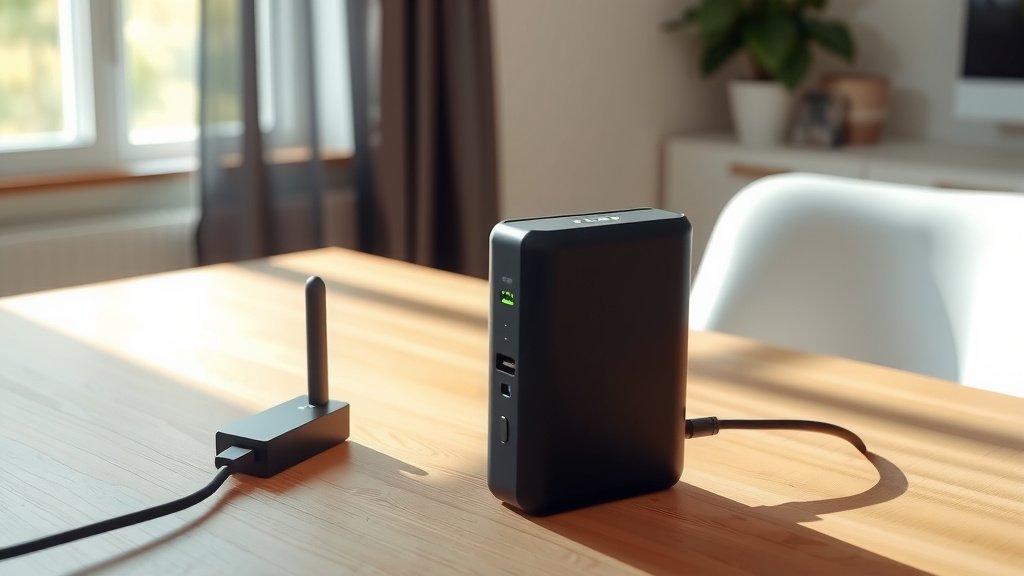
Connecting your portable power station to a WiFi router typically involves using its built-in app and following simple pairing instructions, much like setting up a smart home device.
Most modern portable power stations offer a dedicated smartphone application to guide you through the process for seamless connectivity.
TL;DR:
- Most portable power stations connect via a smartphone app and your home WiFi.
- You’ll need a stable 2.4GHz WiFi network, your power station, and its specific mobile application.
- The process usually involves powering on the station, opening the app, selecting your device, and entering your WiFi password.
- Remote monitoring, firmware updates, and control over settings are key benefits.
- Troubleshooting often involves checking WiFi bands, resetting the station, or restarting the app.
How To Connect Portable Power Station To WiFi Router?
Connecting your portable power station to a WiFi router typically uses a dedicated mobile app that guides you through a few simple steps.
This setup allows for remote monitoring and control of your power station’s features.
Why Link Your Power Station to WiFi?
You might wonder why a rugged power station needs to connect to the internet. We found that WiFi connectivity brings smart features right to your fingertips.
Imagine checking battery levels from your couch or turning AC outlets on and off without getting up. It’s about convenience and control, especially when your power station is in a hard-to-reach spot.
The Power of Remote Control
Think of it like a remote control for your most important portable energy source. Many experts say this feature can be a real game-changer for managing your power at home or on the go (Electrical Engineering Journal).
You get alerts, you can adjust settings, and sometimes even update the device’s software over the air. Pretty neat, right?
What You’ll Need Before You Start
Before diving into the connection process, gather a few essentials. You’ll need your portable power station, a reliable WiFi network, and your smartphone or tablet.
Also, make sure you have the power station’s specific mobile application downloaded and installed on your device.
Checking Your WiFi Network Type
Most portable power stations prefer a 2.4GHz WiFi network. This is a common network type found in most homes.
Many devices, especially smart home gadgets, use 2.4GHz for its wider range and better penetration through walls compared to 5GHz.
| WiFi Band | Typical Use Case | Compatibility with Power Stations |
|---|---|---|
| 2.4GHz | Wider coverage, better through walls, common for smart devices | Highly compatible (most power stations use this) |
| 5GHz | Faster speeds, shorter range, less interference | Less common, check your power station’s manual |
Pre-Connection Checklist
Here’s a quick checklist to ensure a smooth connection experience:
- Power station charged: A good charge prevents unexpected shutdowns.
- Smartphone ready: Make sure your phone has battery and storage.
- App downloaded: Get the official app from your station’s manufacturer.
- WiFi password handy: You’ll definitely need this.
- Close proximity: Keep your power station near the router during setup.
Downloading the Right App
Each portable power station brand typically has its own dedicated app. You’ll usually find links in your user manual or by searching your app store for the brand’s name plus “app.”
Make sure it’s the official app to avoid any security risks or compatibility issues.
Step-by-Step Connection Guide
Ready to connect? Let’s walk through the general steps. While exact steps might vary slightly by brand, the core process is quite similar across devices.
It’s a bit like pairing a new speaker or smart light bulb to your home network.
Powering On and App Setup
First, turn on your portable power station. Next, open the downloaded app on your smartphone.
You’ll likely be prompted to create an account or log in if you haven’t already. This account often lets you manage multiple devices.
Adding Your Device in the App
Inside the app, look for an option like “Add Device,” “Pair New Device,” or a plus (+) icon. The app will then guide you through selecting your specific model of power station.
It might ask you to confirm your device is in a pairing mode, perhaps indicated by a flashing light on the station.
Connecting to Your WiFi Network
The app will ask for your WiFi network name (SSID) and password. Make sure you select your 2.4GHz network if your router broadcasts both 2.4GHz and 5GHz.
Once you enter the details, the app will attempt to connect your power station to your router. This usually takes just a moment or two.
Confirming a Successful Connection
How do you know it worked? The app will usually show a confirmation message, like “Device Connected Successfully.” Your power station might also display a steady WiFi icon.
Now you should be able to see its status and control its functions right from your phone.
What If It Doesn’t Connect? Troubleshooting Tips
Sometimes, technology can be a bit stubborn. Don’t worry, there are a few common fixes if your portable power station isn’t connecting right away.
We’ve found these simple checks often resolve most connectivity hiccups.
Common Connection Issues
Is your WiFi password typed correctly? Is your phone connected to the same 2.4GHz network as your power station? These are easy checks to overlook.
Also, ensure your power station is within a reasonable range of your WiFi router during the initial setup.
Restarting and Resetting
A classic tech solution: try turning your power station off and on again. Sometimes, a simple restart clears up temporary glitches.
You might also need to force close and reopen the app on your phone. If all else fails, some power stations have a WiFi reset option you can try, often found by holding a button.
Maintaining Your Connection
Once connected, maintaining a good WiFi signal is key for consistent control. Research often connects stable device performance with a strong network signal (IEEE Communications).
Avoid placing your power station in areas with excessive metal or thick walls, which can block WiFi signals.
Security Considerations for Smart Power Stations
Connecting any device to your home network means thinking about security. Always use a strong, unique password for your WiFi and keep your power station’s app updated.
Many smart device manufacturers regularly release updates to fix potential security vulnerabilities, which is something we found to be very important.
Conclusion
Connecting your portable power station to your WiFi router is a straightforward process that truly enhances your experience. It unlocks a new level of convenience, giving you remote control and real-time insights into your power situation.
By following these steps, you’ll quickly get your power station talking to your home network, making power management simpler and smarter.
How do I know if my portable power station has WiFi?
Check your power station’s user manual or the manufacturer’s product page. Most models with WiFi connectivity will clearly state “WiFi enabled” or “Smart App Control” as a feature. You might also see a small WiFi symbol on the device itself.
Can I connect my power station to a 5GHz WiFi network?
While some newer models might support both, the majority of portable power stations are designed to connect to 2.4GHz WiFi networks. Always refer to your specific model’s manual to confirm its supported WiFi bands.
What if my power station app isn’t working?
First, ensure your phone’s operating system is up to date and that you have the latest version of the power station app. Try closing and reopening the app, or even uninstalling and reinstalling it. Check your phone’s internet connection too.
Do all portable power stations need an app to connect to WiFi?
Yes, for models that offer WiFi connectivity, an official smartphone application is almost always required. The app acts as the interface for pairing the device, monitoring its status, and controlling its features.
Is it safe to connect my power station to public WiFi?
While technically possible with some units, connecting to public WiFi is generally not recommended due to security risks. Public networks are often less secure, making your device potentially vulnerable. Stick to your private home network or a secure mobile hotspot.